Glow Finger Spinner Art App
- 4.1
- Rating
- 5.00M
- Installs
- Free
- Price
 Analysis by App-foxy
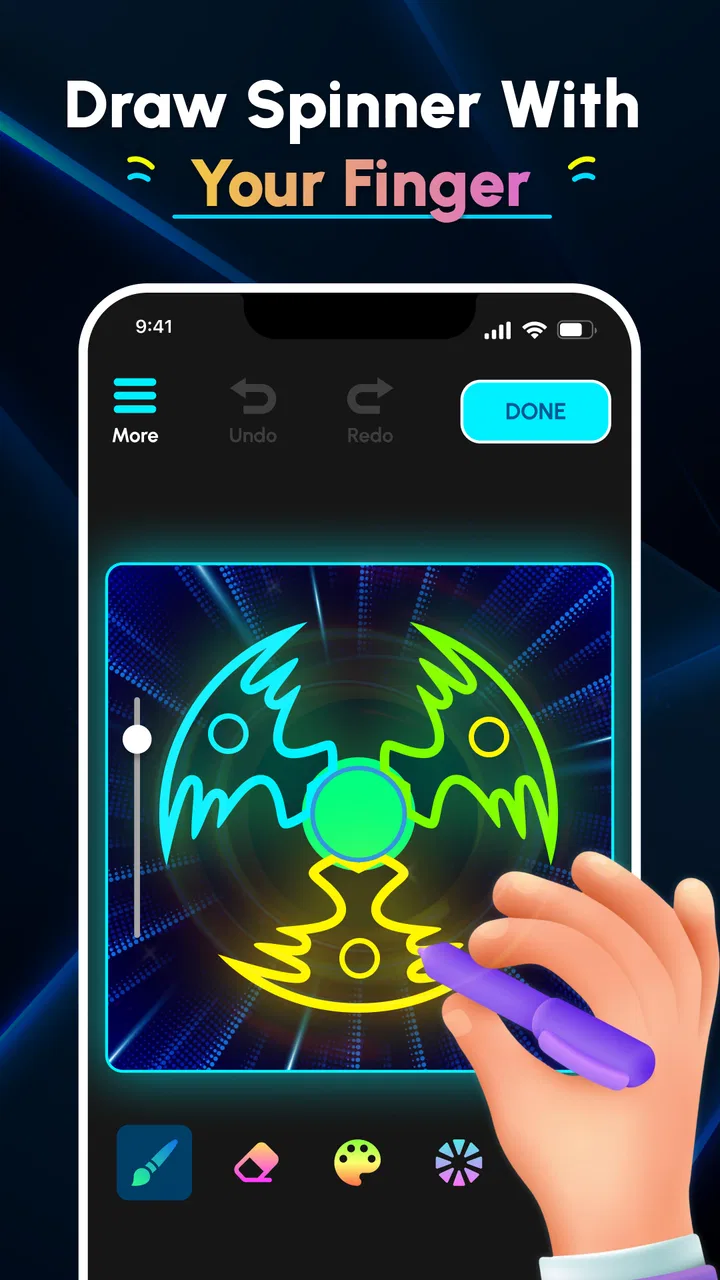
I opened Glow Finger Spinner expecting a quick distraction and found a small drawing app built around a very specific kind of satisfaction: making bright spinner patterns with a fingertip, then watching the design take shape on the screen. It sits in the art and design category, but it is not trying to replace a full illustration studio. Its appeal is closer to digital doodling, visual fidgeting, and casual pattern-making.
That distinction matters. If you want layers, brushes, precise selections, typography, or a serious export workflow, this is not the tool I would choose. If you want something approachable that lets you create colorful circular designs without learning a complicated interface, it makes much more sense. I found the first sessions easy to start and pleasant to repeat, although the bigger question is whether the novelty lasts after the first burst of experimentation.
My short view is that Glow Finger Spinner works best as a low-pressure creative break, not as a complete art workstation. The free price makes it easy to try, the Everyone age rating keeps the concept broadly accessible, and the current version, 1.1.5, feels aimed at quick interaction rather than professional production. The developer behind it is Braly JSC.
You May Also Like

 Blood Strike: 2.5 Anniversary
Blood Strike’s Loadouts Turn Every Drop Into a Tactical Gamble
A close look at Blood Strike’s custom loadouts: how fast access to signature weapons reshapes its battle royale rhythm, rewards preparation, and narrows the gap between fights.

 Pandora - Music & Podcasts
Pandora’s Music Is Easy to Start, but Harder to Recover
Pandora’s strength is its low-effort path from a seed to a station. Its weak spot is how much confidence it asks you to place in connection, setup, and quiet recovery.

 8 Ball Pool
 Is Built on Rivalries, Rematches, and Routine
A close look at the rivalries, rematches, shared routines, and unanswered safety questions that turn a quick pool match into a persistent mobile community.

 Samsung Music
’s Quiet Strength Is Playing What You Already Own
Its reach comes less from spectacle than from dependable access to a personal library. That simplicity is both the app’s strongest retention engine and its ceiling.

 AccuWeather: Weather Radar
AccuWeather Review: A Quick, Clear Forecast for Everyday Decisions
For everyday plans, the best forecast is the one you can understand quickly. AccuWeather makes rain timing, radar, and local conditions easy to act on, with a few trade-offs.

 Hill Climb Racing
Why Hill Climb Racing Still Turns Crashes Into One More Run
A tiny car, a bumpy hill and one more upgrade: Hill Climb Racing keeps resurfacing because its simple chaos makes every near-miss feel personal.
More From Our News Desk



Why the first week feels so inviting
The strongest part of the experience is the low entry barrier. I did not need to study a manual or understand a traditional drawing canvas before making something recognizable. The spinner format gives every movement an immediate visual consequence, so even a simple swipe can become part of a larger radial composition.
That makes the app especially suitable for people who say they are “not artistic.” Traditional drawing apps can make an empty canvas feel like a test. Here, the circular structure does some of the organizing for you. The result may not be carefully planned, but it can still look deliberate because repeated movement naturally creates balance.
During the first few sessions, I enjoyed trying different gestures rather than aiming for a finished illustration. A slow, controlled movement produced a different mood from a fast, careless one. I also found that stopping earlier was often better than continuing until every area was filled. The empty space around a bright shape can make the design easier to read.
A useful beginner habit is to start with a simple center-focused pattern, pause, and inspect it before adding more. This prevents the common mistake of covering the whole spinner with marks just because the app makes drawing so easy. The most attractive results often come from restraint, not from maximum activity.
The app is also a comfortable choice for short sessions. I could use it while waiting for an appointment, taking a break from reading, or winding down before bed without committing to a project. That casual scale is one of its real strengths. It does not demand the concentration that a detailed sketching application demands.
For children and families, the simple concept is approachable as well. The Everyone rating reflects that broad accessibility, though I would still treat any creative app as something younger users may enjoy more with ordinary device supervision. The design activity itself is easy to understand, and there is no need to explain complicated art terminology before someone can begin.
Glow Finger Spinner has also attracted a sizeable audience, with over five million installs and an average score of 4.3 from around two hundred ratings. Those figures suggest that the basic idea is connecting with many casual users. They do not guarantee that every person will enjoy the long-term experience, but they do support my impression that the first-use concept is immediately understandable.
Small techniques that improve the results
One of the less obvious lessons is that finger pressure and movement rhythm matter even when the app appears simple. I got better-looking patterns by treating the screen like a surface for controlled gestures instead of scribbling randomly. Repeating a similar motion produces visual consistency, while deliberately changing direction can create a stronger focal point.
I also recommend making a mental plan before touching the screen. Decide whether the design should feel dense, open, symmetrical, or chaotic. Since the spinner format encourages repetition, a vague intention is enough to stop the result from becoming visual noise. This is a more useful approach than trying to copy a complex reference image.
Another practical tip is to use the app as a warm-up rather than immediately judging the first design. My first attempt was usually exploratory. The second or third benefited from knowing how much movement felt excessive. That makes the app more rewarding for someone who enjoys gradual improvement, even though it remains a casual tool.
In an everyday scenario, I can imagine using it during a short afternoon break after a difficult task. Instead of opening a social feed and continuing to scroll, I would spend a few minutes making one pattern, stop when it feels complete, and return to work. The activity is simple enough to reset attention without turning into a large commitment.
What remains useful after the novelty fades
The first-week appeal is clear, but recurring value is more limited. Glow Finger Spinner gives me a pleasant creative action, yet its long-term usefulness depends on whether I enjoy repeating that action for its own sake. This is not an app with a broad collection of unrelated tools that can keep revealing new workflows. Its identity is focused on spinner-based drawing.
That focus can be a benefit. A narrow app is easier to understand and less intimidating than a full art suite. I would recommend it to someone who wants a familiar five-minute activity rather than a program to master. It can become part of a small routine: make a pattern during a break, use it as a visual warm-up before sketching on paper, or let a child experiment with color and movement.
For me, the recurring value comes from variation in the user’s approach, not from a deep system inside the app. I can change the pace of my gestures, try a more symmetrical composition, or deliberately leave areas quiet. The app provides the canvas and the central idea; the lasting interest has to come from my own willingness to explore.
That means the app is more likely to remain installed for people who enjoy meditative repetition. Someone who wants constant new challenges may tire of it quickly. There is a natural ceiling to how fresh a single drawing concept feels, especially if the user approaches every session in exactly the same way.
I would not position it as a replacement for established mobile art apps. A conventional drawing app is better when I need precise line work, freeform composition, detailed editing, or a project that can grow over several days. Those tools usually offer more control and a clearer path from rough sketch to finished image. Glow Finger Spinner is better when control would feel like work and I simply want to make something visually pleasing.
It also differs from coloring apps. Coloring usually gives the user prepared shapes and asks for choices inside defined areas. This app makes the gesture itself more central. That gives me more freedom at the moment of creation, but it also means the outcome is less predictable. People who prefer calm, guided filling may find a coloring app more satisfying.
Compared with paper doodling, the advantage is convenience and immediate visual feedback. I can start without finding a pen or clearing a desk. The trade-off is that the tactile quality of paper is missing, and the spinner format may feel restrictive if I want to draw an ordinary scene, object, or character.
Who gets the most month-to-month value
I see three groups benefiting most over time. The first is casual doodlers who like patterns but do not want a technical art program. The second is younger or family users looking for an uncomplicated creative activity. The third is anyone who uses small visual exercises to break up screen fatigue or restart concentration.
It can also help a person who is stuck before beginning a larger creative task. Spending a few minutes on a circular design removes the pressure of producing something important. I would not call it a formal drawing lesson, but it can make the hand feel active and the mind less hesitant before moving to a notebook or a more advanced app.
On the other hand, I would skip it if my main goal were building a portfolio, practicing observational drawing, or preserving a carefully editable project. The spinner concept is intentionally playful, and that playfulness becomes a limitation when I need accuracy, repeatable technical results, or a broad set of artistic tools.
Maintenance, friction, and the reasons fatigue appears
The maintenance burden is low in one important sense: there is no complicated creative workflow to organize. I do not need to manage a large project structure just to make a quick design. That simplicity is valuable for occasional users who would abandon a more demanding art application after seeing too many controls.
At the same time, simplicity can create its own kind of maintenance problem. Once I understand the central interaction, there is less to rediscover. The app does not automatically become more useful simply because I keep it installed. Its place on my device depends on whether the basic drawing loop continues to feel relaxing or entertaining.
The main source of fatigue is repetition without a personal challenge. If every session consists of the same speed, the same density, and the same type of pattern, the results begin to blur together. I found that setting a small rule helped: use fewer marks, create a stronger center, alternate between fast and slow movement, or stop after a deliberately short session.
Another source of fatigue is the gap between casual creation and finished artwork. The app can produce attractive designs, but a user expecting a complete creative pipeline may wonder what to do next. If the purpose is simply to enjoy the act of drawing, that gap is harmless. If the purpose is to create polished assets for a project, it becomes a serious limitation.
There is also a learning curve of a different kind. The interface may be easy to begin with, but learning how to make consistently good patterns requires observation. I had to notice when a design became too crowded and when a gesture made the composition feel unbalanced. The app does not remove the need for taste; it only makes experimentation less intimidating.
My best maintenance strategy would be to keep it as a small, occasional tool rather than forcing a daily habit. A daily streak could make the activity feel like an obligation, while using it whenever I need a short creative reset preserves the original appeal. In that role, it has a better chance of surviving beyond the initial download.
The technical requirements are also modest enough for older compatible devices, since it runs on Android 7.0 and later. That broad compatibility makes it easier to recommend to people who are not using a recent phone. Still, performance and comfort can vary between devices, so I would judge the experience on the actual screen size and touch response available to me rather than assuming every handset feels identical.
Questions I would consider before keeping it installed
If I only have a few minutes, is it worth opening? Yes, when I want an active distraction instead of passive scrolling. The interaction starts quickly and does not require a long setup. Its value is strongest when I accept that a session can end with a simple pattern rather than a major artistic achievement.
Is it suitable for serious artists? Only as a warm-up or a playful side tool. The circular format can encourage interesting repetition, but it should not be confused with a full drawing environment. An artist who needs control over detailed composition will be happier with a dedicated illustration app.
Will a child understand it without instruction? The basic idea is approachable, and the Everyone rating supports its broad audience. I would still show a child how to make slower, more deliberate movements, because random swiping can quickly produce a crowded result and may reduce the sense of discovery.
Does the free price change my recommendation? Definitely. Because it is free, I can judge it by enjoyment rather than by whether it replaces another paid tool. I would be more demanding if I needed it for professional work, but as a casual art experiment the entry cost is not a barrier.
Can it become a long-term creative habit? It can, but only for the right person. I would keep returning if I enjoyed the meditative motion and liked comparing different approaches. I would remove it if I wanted new subjects, structured lessons, or a growing set of advanced techniques. The app’s narrow purpose is both its charm and its boundary.
My long-term verdict on Glow Finger Spinner
After looking past the initial glow, I think Glow Finger Spinner earns a place on a device when it serves a clear small purpose. It is a friendly, free art and design app from Braly JSC that turns fingertip movement into colorful spinner-style patterns. The experience is approachable, quick to understand, and well suited to casual creative breaks.
What keeps it from becoming an essential art application is not a flaw in the central idea. It is the limited range of that idea. Once I have explored the main gesture and learned how density affects the result, the app depends heavily on my own creativity to stay fresh. Users who enjoy repetition will see that as an open playground; users who need constant novelty will see it as a short-lived experiment.
I would recommend it to a friend who wants a relaxing way to draw without facing a blank traditional canvas. I would also suggest it to families seeking a simple creative activity and to casual users who want something more active than scrolling. I would not recommend making it the only art app on a phone, especially for anyone interested in detailed illustration or serious project work.
The most sustainable way to use it is in moderation: open it when you want a quick reset, try a specific pattern goal, and stop before the design becomes overworked. That approach respects what the app does well instead of asking it to become something larger. Glow Finger Spinner earns lasting space as a compact creative fidget, not as a complete studio.
FAQs for Glow Finger Spinner Art App
01What is Glow Finger Spinner Art App, and how does it work?
Glow Finger Spinner Art App is a relaxing digital drawing and visual-effects app that lets you create colorful spinning patterns with touch gestures. After opening the app, you can choose glowing colors, adjust the spinner’s appearance, and move your finger across the screen to produce animated circular artwork. It is designed more for creative experimentation and entertainment than for traditional drawing or advanced graphic design.
02Is Glow Finger Spinner Art App suitable for children?
The app is generally easy for children to use because its controls are based on simple taps, swipes, and visual buttons. However, parents should review the version available on their device before downloading, especially regarding advertisements, optional purchases, permissions, and external links. Younger children may also need supervision if the app includes bright flashing effects, as these can be uncomfortable for users sensitive to intense lights or animation.
03Does Glow Finger Spinner Art App work without an internet connection?
The main drawing and spinner-art features may work offline once the application has been installed, making it convenient for short creative sessions without mobile data or Wi-Fi. Nevertheless, some elements can depend on an internet connection, including advertisements, updates, analytics, sharing features, or additional content. Offline behavior may also vary between Android and iOS versions, so it is worth testing the app before relying on it while traveling.
04Are there advertisements or in-app purchases in Glow Finger Spinner Art App?
Many casual art and spinner applications use advertising to provide free access, and Glow Finger Spinner Art App may display ads depending on the platform and version you install. Some editions can also offer optional purchases, such as removing advertisements or unlocking extra effects. Before confirming a download or purchase, check the official store listing for current pricing, subscription details, and the developer’s description of available paid features.
05Can artwork created in Glow Finger Spinner Art App be saved or shared?
The app may allow users to capture, save, or share their glowing spinner designs, depending on the features included in the installed release. If a dedicated export option is unavailable, you can usually preserve a creation with your device’s screenshot function, although this may not provide a high-resolution image or transparent background. Sharing may require permission to access photos, files, or other applications on your phone.
Pros
- Simple controls make it easy for anyone to start creating.
- Bright visual effects make finished designs attractive to share.
- Works well for short
- relaxing creative sessions.
- Offers a playful way to experiment with colors and patterns.
- Suitable for users who enjoy casual
- stress-relieving activities.
Cons
- Some effects may feel repetitive after extended use.
- Creative options can be limited compared with professional art apps.
- Fast animations may be uncomfortable for users sensitive to flashing visuals.
- The app may feel more like a toy than a complete drawing tool.
- Certain features or content may depend on ads or in-app purchases.

Glow Finger Spinner Art App
Gallery